
Ming's Zone
BlogsProducesBaby Daily Statistic
1 User Story
When I had my first child, I recorded the baby's daily feeding, Micronutrients and defecation every day.
At first, I used paper and pen to record the data of every feeding or defecation, and used the following format to record these data every day:
2024-5-18:
07:00 Milk powder feeding 90ml
08:35 Milk powder feeding 60ml
10:10 Defecation large,green
......
Half a year later, a thick stack of paper records was accumulated.
There are also some problems during this period. Although these problems do not affect the growth of children, they are not pleasant for the process of recording, such as:
- Sometimes the record's papers are thrown somewhere.
- I forgot to record it after feeding, and when I wanted to record it, I couldn't remember the exact time at that time.
- There is no fixed recording format, and the recording data is relatively casual.
- When counting the recent feeding trend, it is difficult to look through thick paper records.
2 Produce describe
Based on the above description, this simple iOS app was created.
This is an iOS app used to record data on related activities such as babies' daily feeding and defecation. This app is simple and easy to use, making it easy to record, and easy to view and count existing records.
If you are looking for an iOS app to record baby activity data, please decide whether to use the app below.
2.1 Main page and function overview
This iOS app consists of 3 main interfaces, which are:
- Add a recording UI.
- Record list UI.
- Statistical UI.
The following figure shows 3 main interfaces respectively: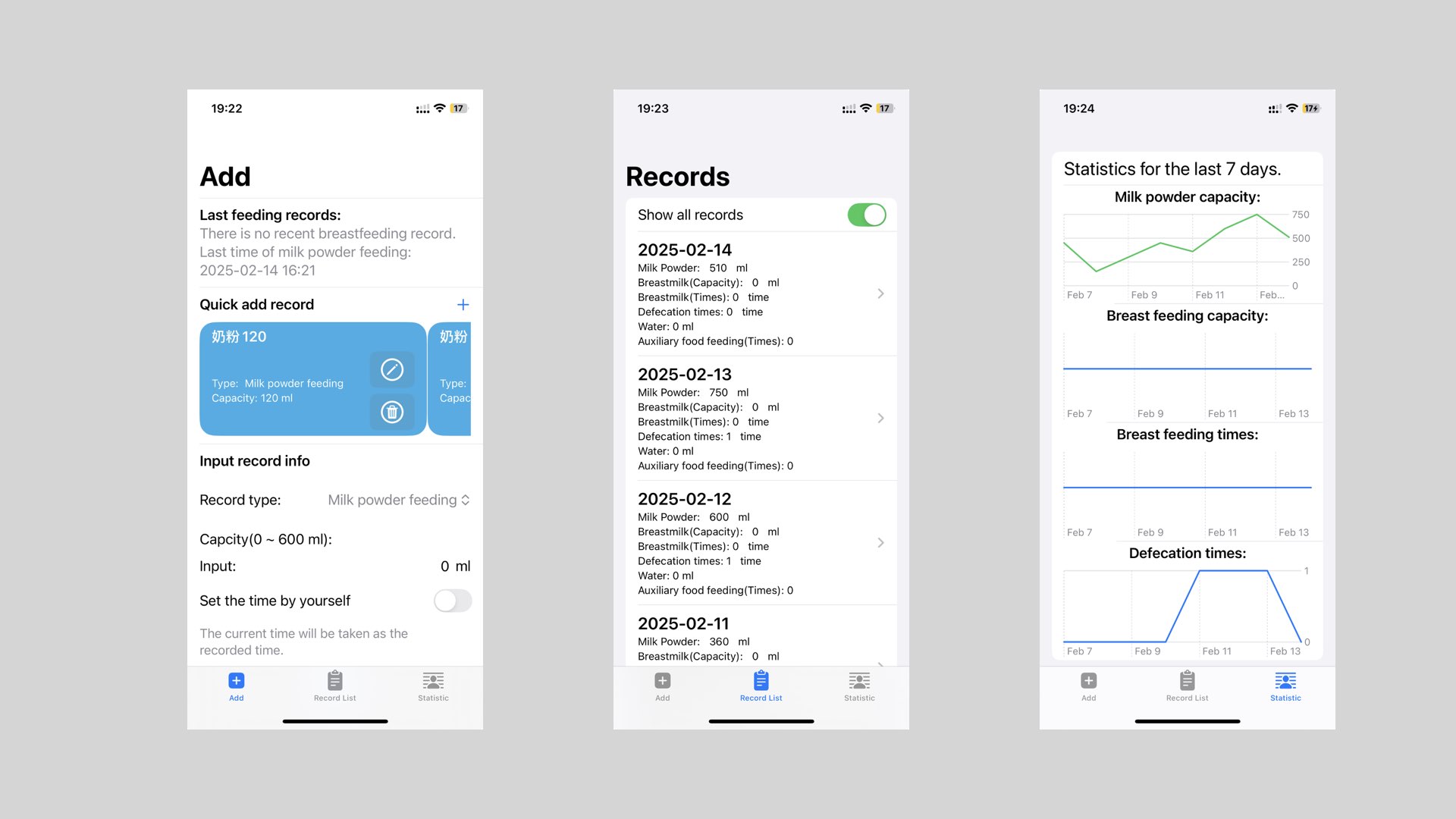 The main functions include:
 - Add feeding or defecation record data.
- Check the list of added records.
- Count the statistical trend within 7 days of the most recently added records.
2.2 Add a record
When you want to add a record, you can add it by entering the record information or by adding it quickly. The speed of generating record data will be faster than the speed at which you write with a pen (if your typing speed is slower than the speed of writing, the input method may be slower than the way you use to write).
In the process of adding records, developers suggest using the quick addition method to add a record (the method of creating a quick addition card will be mentioned in the following chapter).
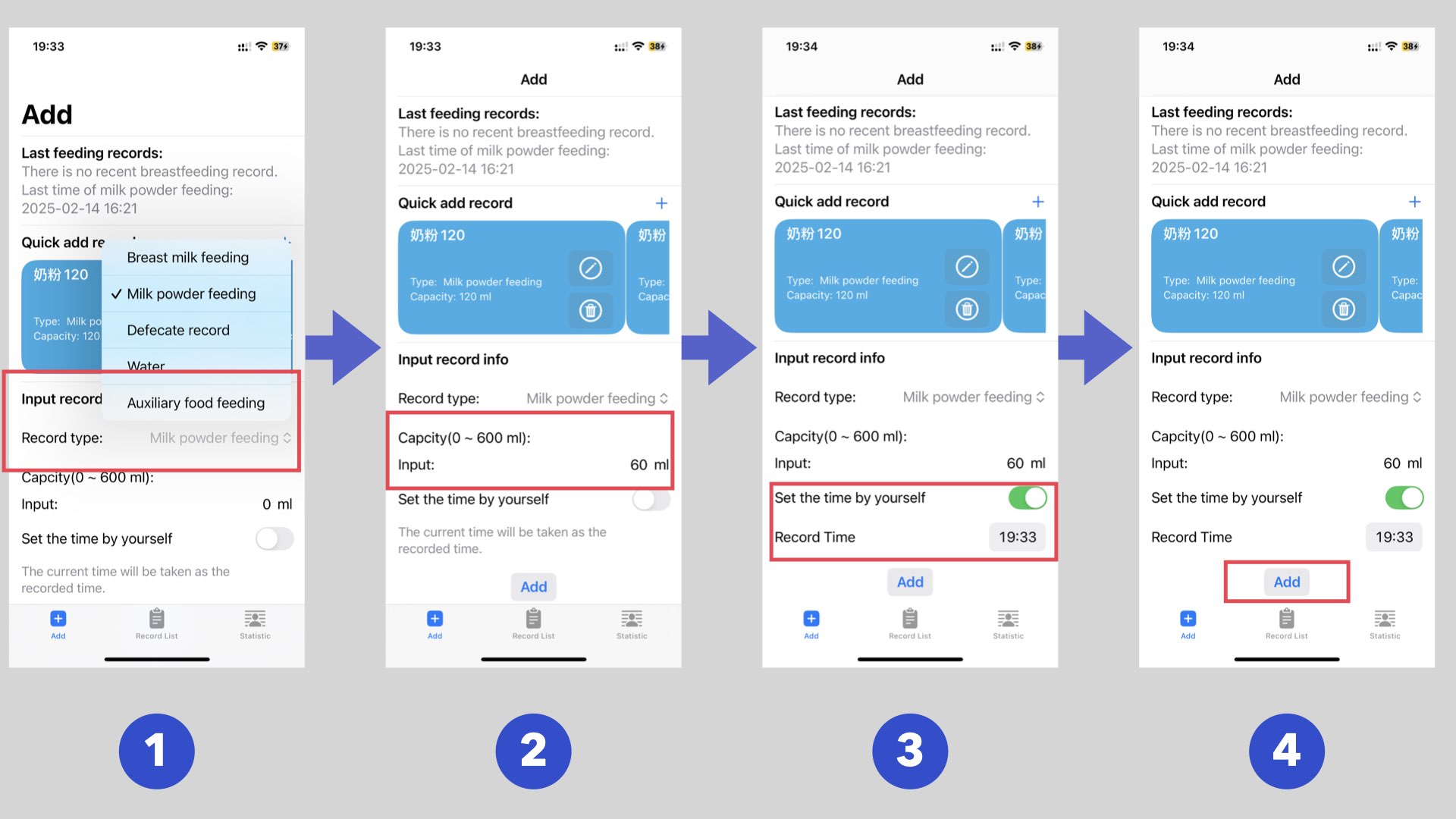
The steps to add records by input are as follows:
- Select the record type on the add record page.
- Enter the necessary information according to the content that needs to be entered for the selected type.
- Select the time to record.
- Click the add button to add the record.
Depending on the selected record type, the content to be entered is also different. The following figure shows the type that needs to be entered or selected for each record type:
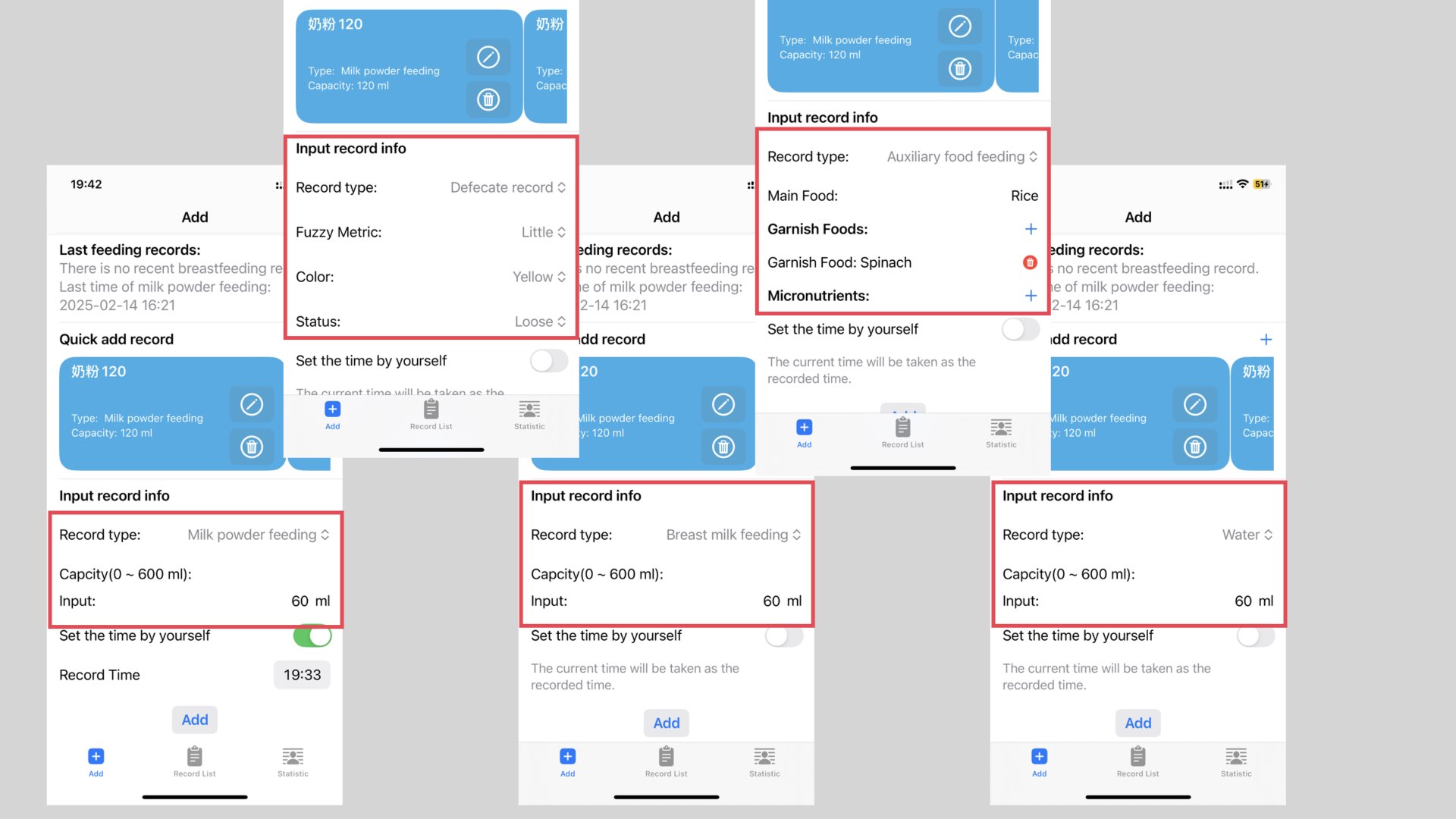 Note: The current input content is the common content of the daily use record of developers. In subsequent versions, developers will add or delete the record content according to the user's suggestions and their own experience.
2.3 Quick option card
For commonly used records, you can simplify the subsequent process of adding records by creating a quick operation card. After creating a quick operation card, click the card to quickly create a record content. The following figure is an example of a quick operation card. Two quick operation cards have been created in the figure, which are to create a 150ml milk powder feeding record and a 120ml milk powder feeding record:
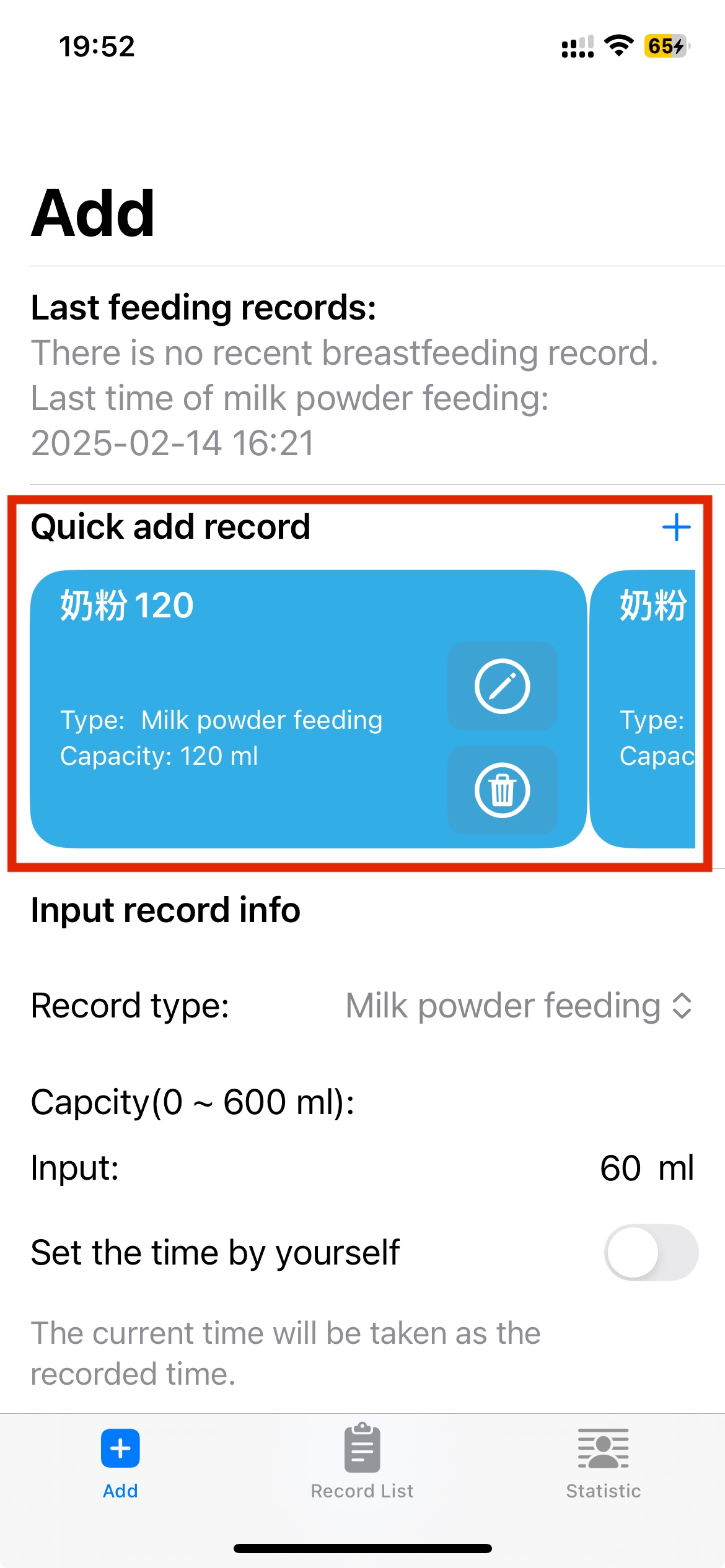
To create a quick operation card, just click + in the Quick Add Record area to create a Quick Option Card. In the process of entering the content, except for the need to add a card name, the other contents are consistent with the input record content. The following figure shows the process of adding a quick Option card:
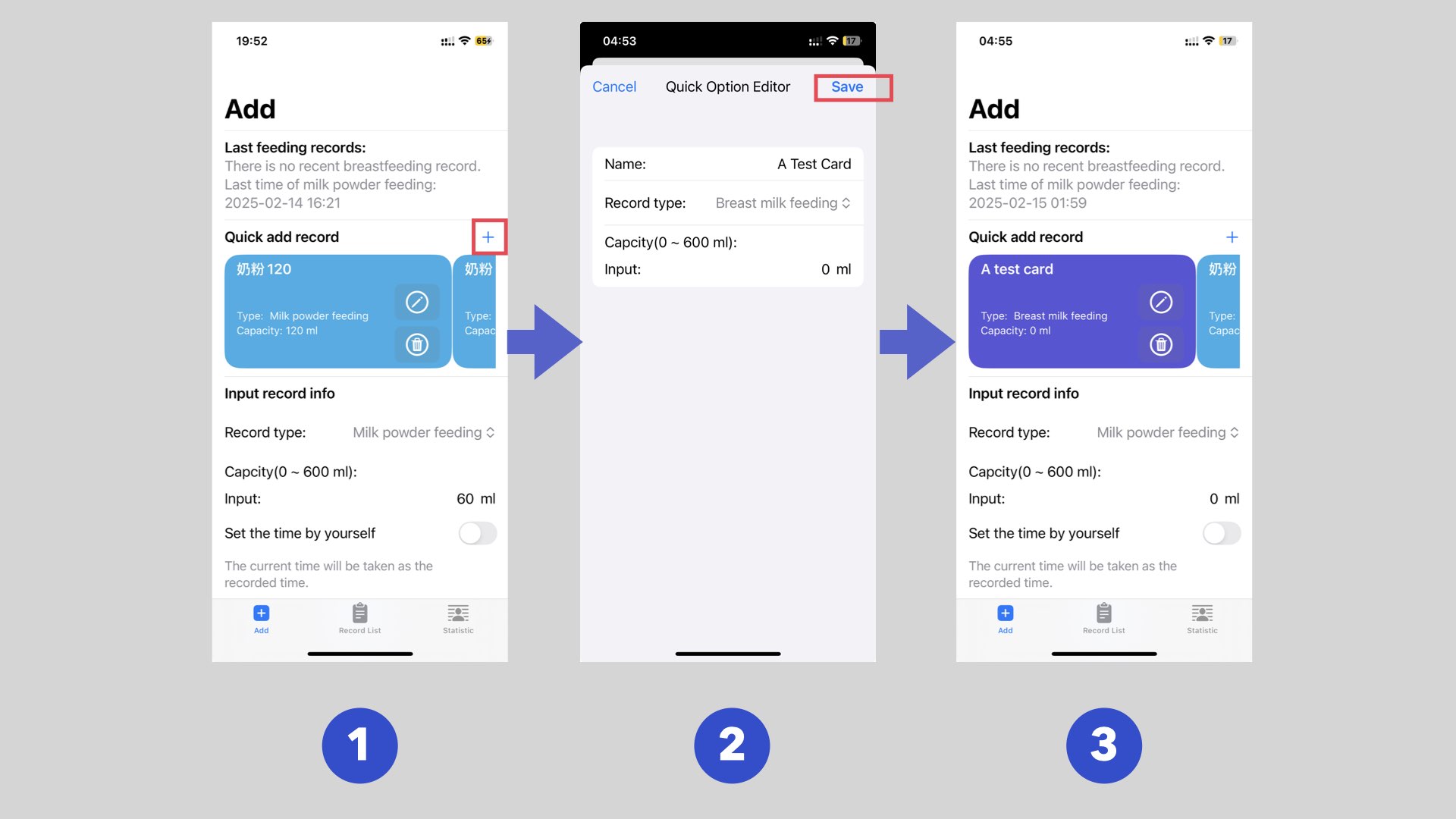 When creating a record, as long as you click on the card, a record will be quickly generated according to the record content of the card and the current click time.
This method is very convenient to add a commonly used record content. Just click to generate content immediately.
If a quick option card is no longer needed, you can choose to modify the content of the card or directly delete the card to create a new card.
- Modify the content of the card by clicking the pencil icon of the card.
- Delete the card by clicking the trash can icon of the card.
2.4 Check the contents of the record
In the record list page, you can view the previous records.
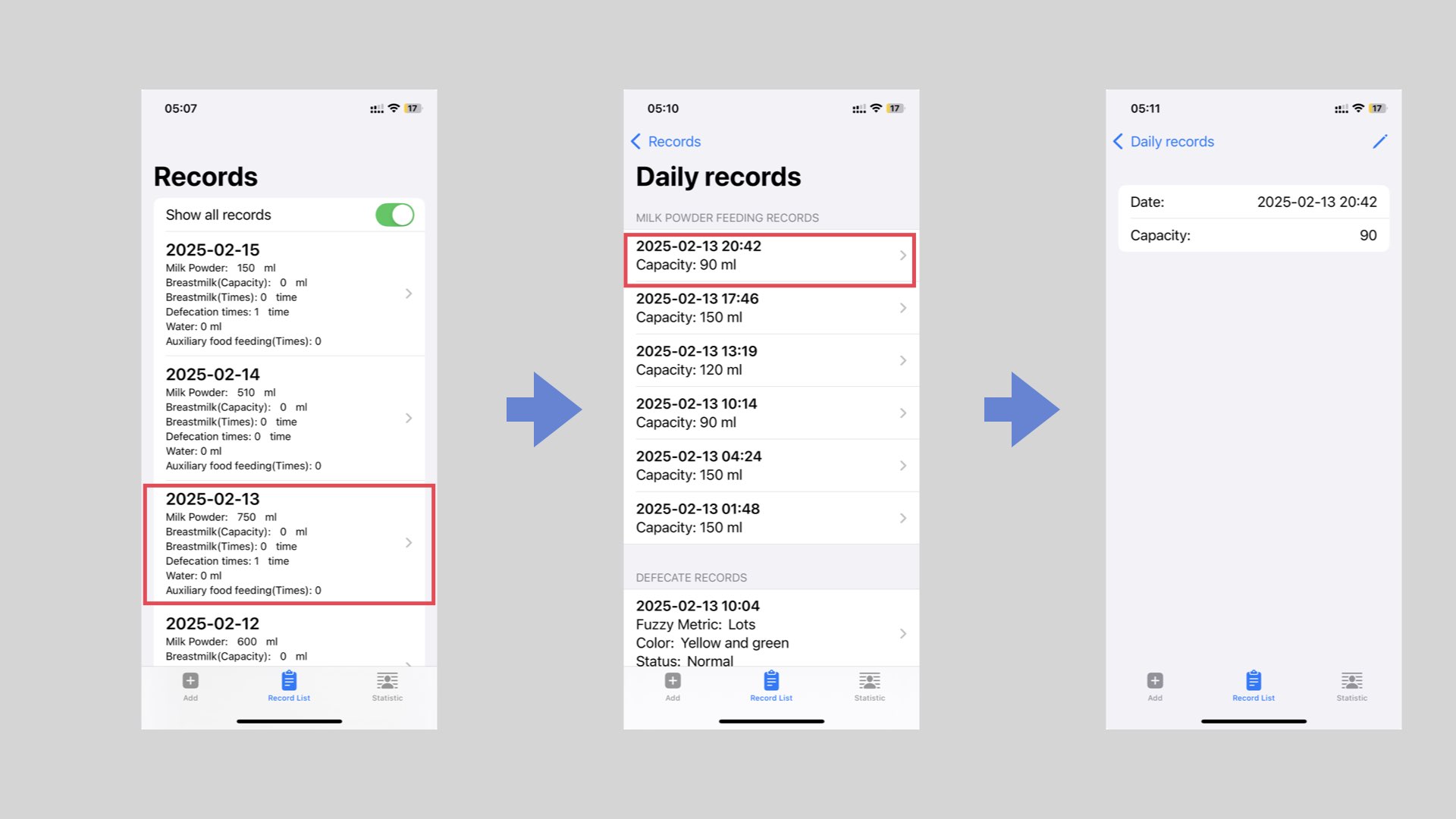
The record list is a form of a three-level list:
The first-level list shows the daily record statistics in days. In the first-level list, you can click on an item to enter the detailed record of the selected day (second-level list).
The second-level list will show the detailed record of the day selected through the first-level list. Click on the record to enter the record details interface (level 3 interface).
The following figure shows the process of viewing records on iPhone:
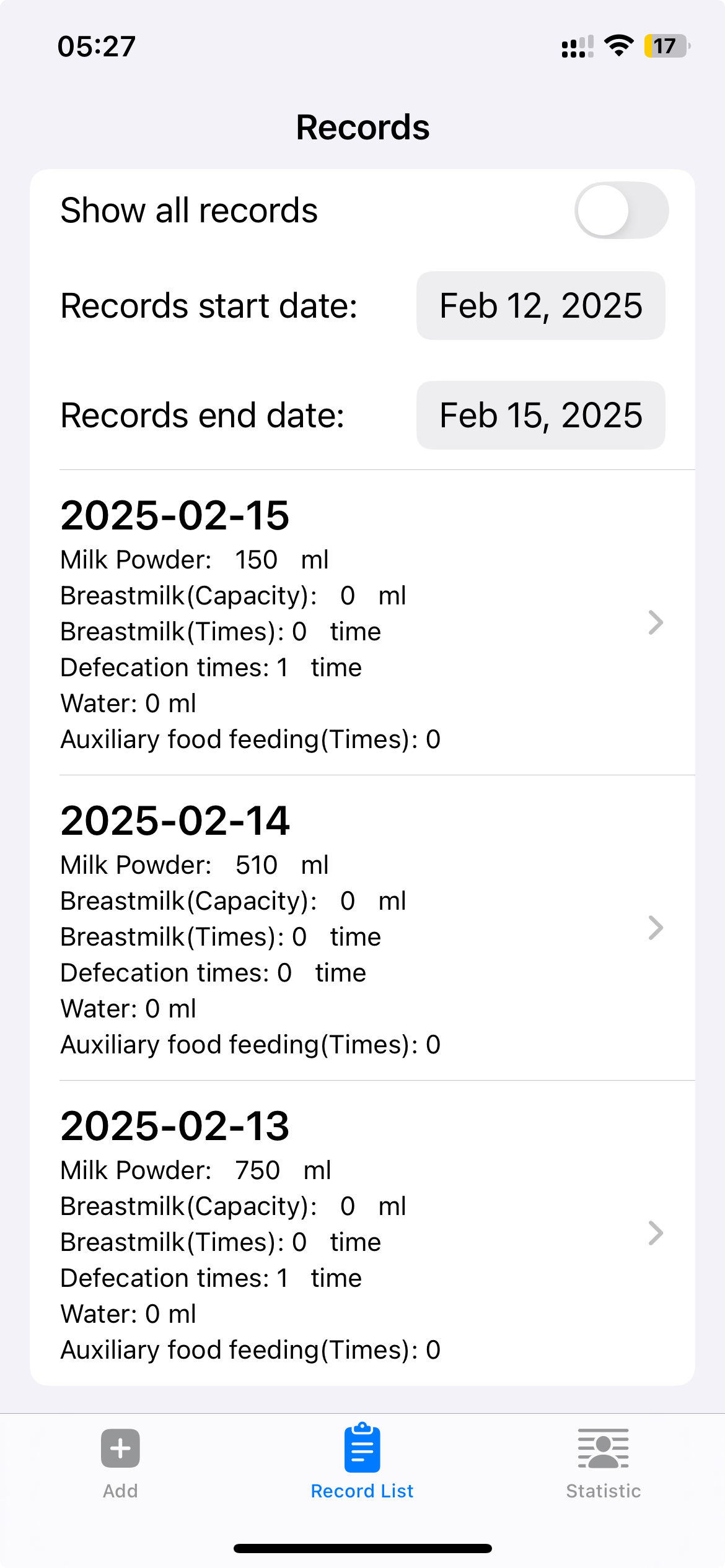
 When you want to query records for a certain period of time, you can turn off the Show All Records switch, and then select the start to end time. After selection, the list will actively refresh the record of the time you selected.
3 Statistic
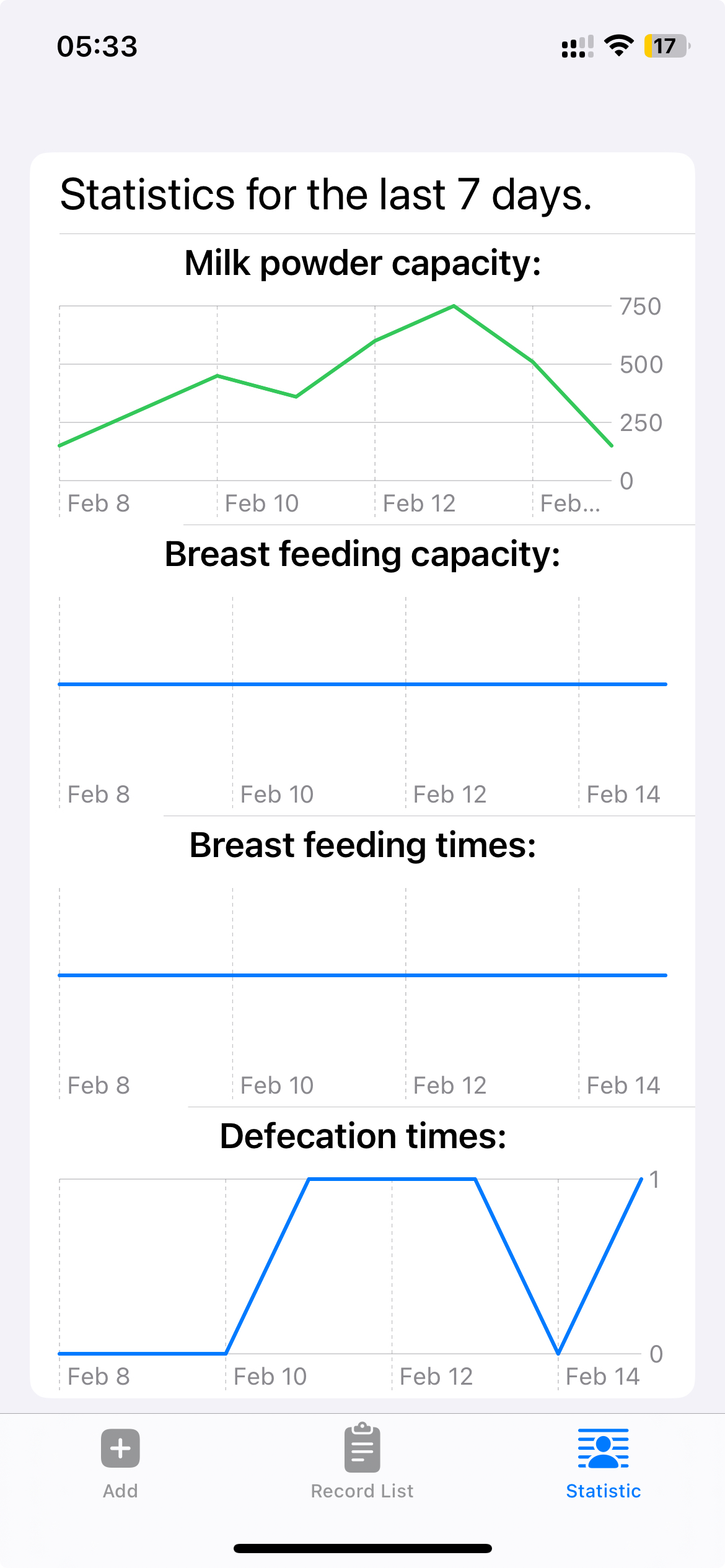
On the statistics page of the app, the trend of baby's milk powder feeding, breastfeeding and defecation will be counted. The statistics will obtain the total amount of each record per day in the last 7 days to generate a curve chart, through which you can check the baby's feeding or defecation in the last 7 days.
4 Contact Developers and Privacy Policy
If you have any questions and suggestions during use, you can inform the developer by sending an email to the developer.
E-mail: mikelv1227@icloud.com
For the privacy policy of the Baby Daily Statistic, please check the details through click here.